
1. Introduction
In modern Oracle database environments, performance tuning and diagnostics are essential to maintain system stability, optimize resource utilization, and ensure high availability. To support this, Oracle Database provides powerful built-in performance analysis tools:
🔸 Automatic Workload Repository (AWR)
➡️ AWR helps DBAs:
- Analyze performance over a specific time period
- Identify bottlenecks and resource-intensive operations
- Compare workload trends between different time intervals
🔸 Active Session History (ASH)
➡️ ASH helps DBAs:
- Troubleshoot performance issues in real time
- Identify blocking sessions and wait events
- Drill down into session-level activity
🔸 Automatic Database Diagnostic Monitor (ADDM)
ADDM (Automatic Database Diagnostic Monitor) is an intelligent diagnostic tool that analyzes AWR data and automatically identifies performance problems.
➡️ ADDM helps DBAs:
- Detect root causes of performance issues
- Provide actionable recommendations
- Prioritize issues based on impact
Why These Tools Are Important
Together, AWR, ASH, and ADDM form the core of Oracle’s performance diagnostic framework. They enable DBAs to move from reactive troubleshooting to proactive performance management.
This Article provides a comprehensive, step-by-step guide to generating and using AWR, ASH, and ADDM reports using Oracle-provided SQL scripts. It covers both:
- Standalone Databases
- Oracle RAC (Real Application Clusters) environments
By the end of this guide, you will be able to efficiently collect, analyze, and interpret performance data to resolve real-world database issues.
2. Objective
- Understand the purpose of AWR, ASH, and ADDM reports
- Learn how to generate reports using Oracle scripts
- Cover both single-instance and RAC environments
- Provide step-by-step execution guidance
3. Types of Reports Covered
| Report Type | Description |
|---|---|
| AWR | Historical performance analysis |
| ASH | Session-level activity monitoring |
| ADDM | Automatic performance recommendations |
| AWR Diff | Compare performance between two periods |
| Global AWR | RAC-wide performance report |
| SQL Report | Performance of specific SQL |
4. Report Generation Procedure
1) awrrpt.sql:
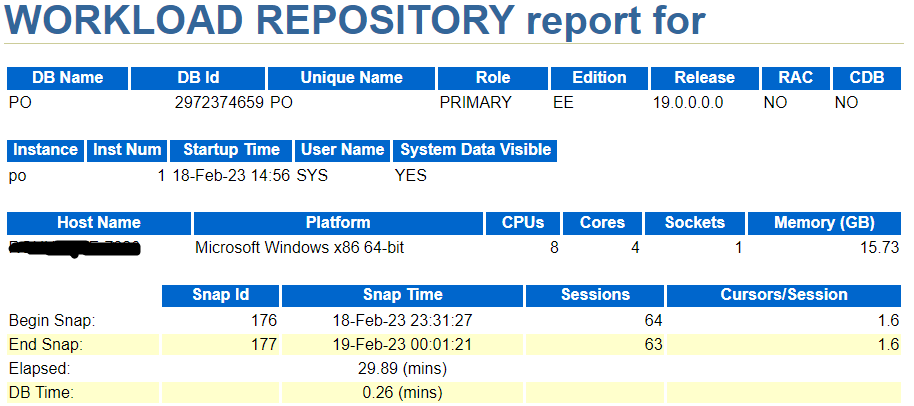
This script is the basic script for capturing workload repository report for standalone database or local instance in case of RAC. --> html - HTML format (default)
--> text - Text format
Entering the number of days (n) will display the most recent
(n) days of snapshots. If you press <ENTER> without specifying a number then it will show you the lists of all completed snapshots.
Type the begin snap id
The default report file name will be awrrpt_<instance_number>_<begin_snap>_<end_snap>.html
If you don't mention any report name then the report will be created as default name otherwise you have to give any name like awr_db_name.html.
The report will be generated in the location where you executed sqlplus / as sysdba command or you can mention the report name with location like /u01/app/oracle/awr_db_name.html

2) ashrpt.sql:
It displays Active Session History information for a specified duration on the local database instance.--> html - HTML format (default)
--> text - Text format
Defaults to -15 mins
To specify absolute begin time:
[MM/DD[/YY]] HH24:MI[:SS]
Examples: 02/23/03 14:30:15
02/23 14:30:15
14:30:15
14:30
To specify relative begin time: (start with '-' sign)
-[HH24:]MI
Examples: -1:15 (SYSDATE - 1 Hr 15 Mins)
-25 (SYSDATE - 25 Mins)
Enter duration in minutes starting from begin time. Defaults to SYSDATE - begin_time.
Enter value for report_name:
The default report file name is ashrpt_<inst_num>_MMDD_DDYY.html.

3) addmrpt.sql:
Automatic Database Diagnostic Monitor(ADDM) can analyze performance issues during a particular period and provide suggestion. Type the begin snap id
Type the end snap id
The default report file name is addmrpt_<inst_num>_<begin_snap>_<end_snap>.txt.
Note, this report will be generated in TEXT format only.

4) awrddrpt.sql:
This script generates an HTML or text report that compares detailed performance attributes and configuration settings between two selected time periods on the local database instance.Entering the number of days (n) will display the most recent
(n) days of snapshots. If you press <ENTER> without specifying a number then it will show you the lists of all completed snapshots.
Specify the First Pair of Begin Snapshot Id
Specify the First Pair of Begin and End Snapshot Id
Entering the number of days (n) will display the most recent
(n) days of snapshots. If you press <ENTER> without specifying a number then it will show you the lists of all completed snapshots.
Specify the Second Pair of Begin Snapshot Id.
Specify the Second Pair End Snapshot Id.
The default report file name is awrdiff_<inst_num>_<first_pair_begin_snap_id>_<inst_num>_<first_pair_begin_snap_id>.html

5) awrrpti.sql:
The awrrpti. sql SQL script generates a report (in HTML or text) that displays statistics for a range of snapshot Ids on a specified instance.The awrrpt.sql script will generate an AWR report for the current instance.
--> html - HTML format (default)
--> text - Text format
--> active-html - Includes Performance Hub active report
Enter value for dbid:
Enter value for inst_num:
Enter value for num_days:
Entering the number of days (n) will display the most recent
(n) days of snapshots. If you press <ENTER> without specifying a number then it will show you the lists of all completed snapshots.
The default report file name is awrrpt_<inst_num>_<begin_snap_id>_<end_snap_id>.html.

6) ashrpti.sql:
This script generates an HTML or text report that displays ASH information for a specified duration on a specified database and instance. SQL> @?/rdbms/admin/ashrpti.sql
Specify the Report Type
Enter html for an HTML report, or text for plain text. Defaults to html.
Defaults to current database
Enter instance numbers. Enter ALL for all instances in a
RAC cluster or explicitly specify list of instances (e.g., 1,2,3). Defaults to current instance.
Defaults to -15 mins. Specify the timeframe to generate the ASH report
Examples: 02/23/03 14:30:15
02/23 14:30:15
14:30:15
14:30
To specify relative begin time: (start with - sign)
-[HH24:]MI
Examples: -1:15 (SYSDATE - 1 Hr 15 Mins)
-25 (SYSDATE - 25 Mins)
Defaults to -15 mins
Defaults to SYSDATE - begin_time. Enter duration in minutes starting from begin time
Specify Slot Width in seconds to use in the Activity Over Time section. In the Activity Over Time section of the ASH report, the analysis period is divided into smaller slots and top wait events are reported in each of those slots.
The analysis period will be automatically split up to 10 slots complying to a minimum slot width of 1 minute, if the source is V$ACTIVE_SESSION_HISTORY or 5 minutes, if the source is AWR_(PDB/ROOT)_ACTIVE_SESS_HISTORY.
Specify SESSION_ID (eg: from V$SESSION.SID) report target. Defaults to NULL.
ASH Report can accept "Report Targets", like a particular SQL statement, or a particular SESSION, to generate the report on. If one or more report targets are specified, then the data used to generate the report will only be the ASH samples that pertain to ALL the specified report targets.
Default:
If none of the report targets are specified, then the target defaults to all activity in the database instance.
Specify SQL_ID (eg: from V$SQL.SQL_ID) report target. Defaults to NULL: (% and _ wildcards allowed).
Specify WAIT_CLASS name (eg: from V$EVENT_NAME.WAIT_CLASS) report target:
[Enter CPU to investigate CPU usage]. Defaults to NULL: (% and _ wildcards allowed).
Specify SERVICE_HASH (eg: from V$ACTIVE_SERVICES.NAME_HASH) report target.
Defaults to NULL.
Specify MODULE name (eg: from V$SESSION.MODULE) report target. Defaults to NULL: (% and _ wildcards allowed).
Specify ACTION name (eg: from V$SESSION.ACTION) report target. Defaults to NULL: (% and _ wildcards allowed).
Specify CLIENT_ID (eg: from V$SESSION.CLIENT_IDENTIFIER) report target:
Defaults to NULL: (% and _ wildcards allowed).
Specify PLSQL_ENTRY name (eg: "SYS.DBMS_LOB.*") report target. Defaults to NULL: (% and _ wildcards allowed).
Specify CONTAINER name (eg: NAME from V$PDBS) report target. Defaults to NULL: (% and _ wildcards allowed).
Enter value for report_name:
Specify the Report Name. The default report file name is ashrpt_<inst_num>_<MMDD>_TT.html. To use this name, press <return> to continue, otherwise enter an alternative.

7) addmrpti.sql:
This SQL*Plus script can be used to run ADDM on any two AWR snapshots provided the two snapshots were taken by the same instance.SQL> @?/rdbms/admin/addmrpti.sql
Enter value for dbid:
Enter value for inst_num:
Entering the number of days (n) will display the most recent
(n) days of snapshots. If you press <ENTER> without specifying a number then it will show you the lists of all completed snapshots.
Specify the Begin and End Snapshot Ids
Enter value for end_snap:
Specify the Report Name. The default report file name is addmrpt_1_172_173.txt. To use this name, press <return> to continue, otherwise enter an alternative.

8) awrgrpt.sql:
This script generates Global AWR report for all available instances in an Oracle Real Application Clusters (RAC) environment.SQL> @?/rdbms/admin/awrgrpt.sql
Specify the Report Type AWR reports can be generated in the following formats. Please enter the name of the format at the prompt. Default value is html.
--> html HTML format (default)
--> text Text format
--> active-html Includes Performance Hub active report
Specify the number of days of snapshots to choose from Entering the number of days (n) will result in the most recent (n) days of snapshots being listed. Pressing <return> without specifying a number lists all completed snapshots.
Specify the Begin and End Snapshot Ids
Enter value for end_snap:
Specify the Report Name. The default report file name is awrrpt_rac_172_173.html. To use this name, press <return> to continue, otherwise enter an alternative.

9) awrgrpti.sql:
This generates Global AWR report for available instances in RAC environment. It does this for a specified database and instances either one instance, a comma delimited list of some instances or all instances.SQL> @?/rdbms/admin/awrgrpti.sql

10) awrgdrpt.sql:
SQL> @?/rdbms/admin/awrgdrpt.sql
Specify the Report Type. Enter html for an HTML report, or text for plain text. Defaults to html.
Specify the number of days of snapshots to choose from Entering the number of days (n) will result in the most recent (n) days of snapshots being listed. Pressing <return> without specifying a number lists all completed snapshots.
Specify the First Pair of Begin and End Snapshot Ids
Enter value for end_snap:
Specify the number of days of snapshots to choose from Entering the number of days (n) will result in the most recent (n) days of snapshots being listed. Pressing <return> without specifying a number lists all completed snapshots.
Specify the Second Pair of Begin and End Snapshot Ids
Enter value for end_snap2:
Specify the Report Name The default report file name is awrracdiff_1st_170_2nd_172.html To use this name, press <return> to continue, otherwise enter an alternative.

11) awrextr.sql:
SQL> @?/rdbms/admin/awrextr.sql
The default database id is the local one: '2972374659'. To use this database id, press <return> to continue, otherwise enter an alternative.
Specify the number of days of snapshots to choose from Entering the number of days (n) will result in the most recent (n) days of snapshots being listed. Pressing <return> without specifying a number lists all completed snapshots.
Specify the Begin and End Snapshot Ids.
Enter value for end_snap:
Specify the Directory Name. Choose a Directory Name from the above list (case-sensitive). This would be your logical directory from database i.e. from DBA_DIRECTORIES.
Specify the Name of the Extract Dump File. The prefix for the default dump file name is awrdat_<begin_snap_id>_<end_snap_id>. To use this name, press <return> to continue, otherwise enter an alternative. Do not give extension *.dmp. It will automatically give *.dmp extension.
| in the following directory/file:
| D:\RUPESH\Setups\WINDOWS.X64_193000_db_home\rdbms\xml\schema
| awrdat_175_176.dmp
| progress of the AWR extract operation can be
| monitored in the following directory/file:
| D:\RUPESH\Setups\WINDOWS.X64_193000_db_home\rdbms\xml\schema
| awrdat_175_176.log
12) awrinfo.sql:

13) awrsqrpt.sql:
This script to produce a Workload report for a particular sql statement.This is an HTML or text report that displays statistics including past execution plans of a particular SQL statement for a range of snapshot Ids.
A good explain plan can be collected from a UAT/Performance environment having similar data but better performance.
SQL> @?/rdbms/admin/awrsqrpt.sql
Specify the Report Type. Enter 'html' for an HTML report, or 'text' for plain text. Defaults to 'html'
Specify the number of days of snapshots to choose from Entering the number of days (n) will result in the most recent (n) days of snapshots being listed. Pressing <return> without specifying a number lists all completed snapshots.
Specify the Begin and End Snapshot Ids
Specify the Begin and End Snapshot Ids

5. Key Differences
| Feature | AWR | ASH | ADDM |
|---|---|---|---|
| Data Type | Historical | Real-time sampling | Analysis |
| Usage | Performance trends | Session analysis | Recommendations |
| Output | Report | Report | Findings |
6. Best Practices
✔ Always capture AWR before and after major changes
✔ Use AWR Diff reports for comparison
✔ Use ASH for real-time troubleshooting
✔ Use ADDM for quick recommendations
✔ Store reports for historical analysis
7. Use Cases
- Performance degradation
- High CPU usage
- Slow SQL queries
- RAC interconnect issues
- Capacity planning
8. Conclusion
AWR, ASH, and ADDM reports are essential tools for Oracle DBAs to monitor and troubleshoot database performance. By mastering these scripts, you can:
- Quickly diagnose issues
- Improve database performance
- Make data-driven tuning decisions